

Resolution record — requirement 2.1.1
| App | Optivo |
| Client ID | 71936bd3…5bf37bfa |
| Requirement | 2.1.1 — Build apps without critical errors |
| Feedback received | 28 October 2026 |
| App version | optivo-8 |
| Record updated | 2 November 2026 |
What the reviewer reported
Section titled “What the reviewer reported”On the live product page, the app fails to display the configured option fields, preventing the workflow from being reviewed through checkout.
The reviewer opened Optivo’s Storefront setup page, which confirmed the app embed was switched on, then opened a product page and found no option fields.
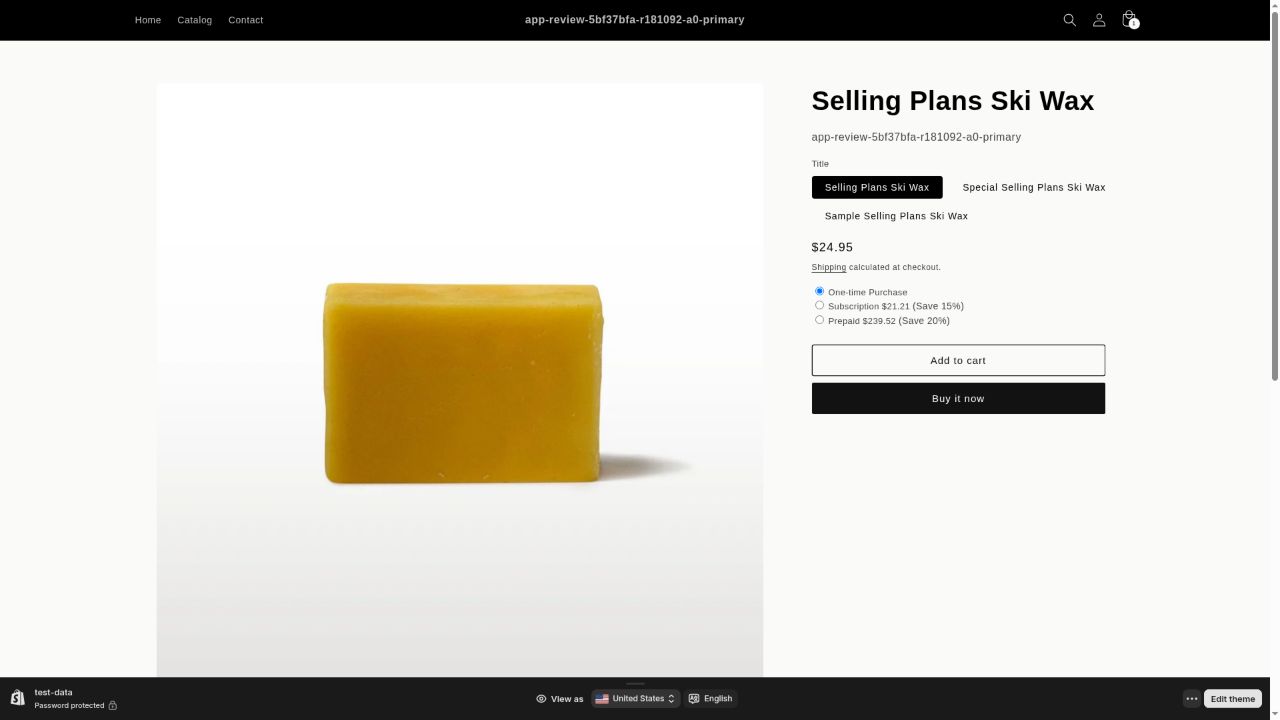
From the review: the product page, with no option fields rendered.
The Storefront setup page today
Section titled “The Storefront setup page today”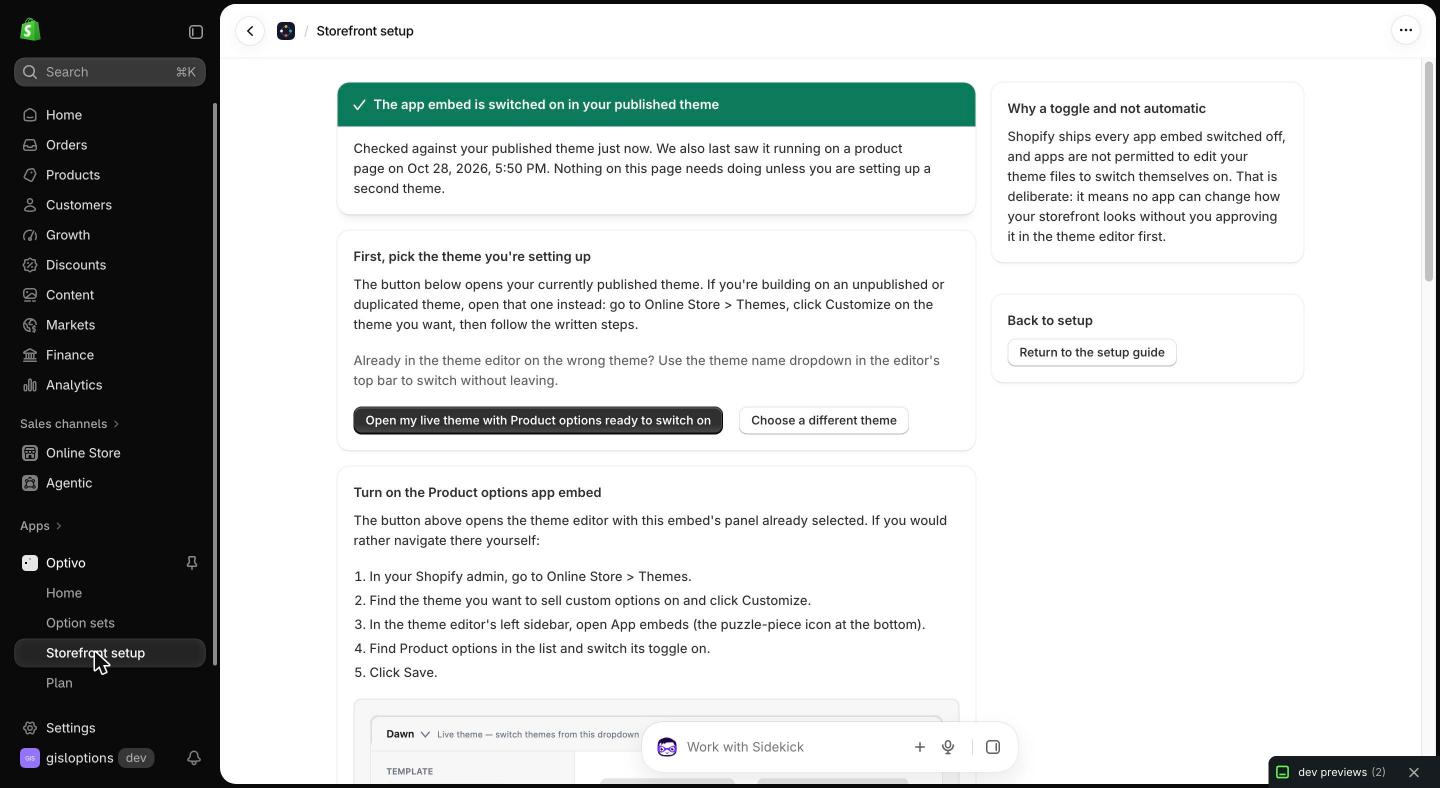
Captured from the live app on 2 November 2026.
Two things to compare against the banner the review quoted.
Fixed. The banner read “switched on in test-data” — the name of the published theme, interpolated without being identified as one, so it scanned as a reference to data the app had loaded. It now reads “in your published theme” and never substitutes a bare theme name.
Still open. The sentence “Nothing on this page needs doing” remains, and it is the sentence that caused the failed review: it reads as setup is complete while no option set has been built or assigned, which is the state the reviewer was in. That is the change tracked below.
Root cause
Section titled “Root cause”The app embed was genuinely enabled. The Storefront setup page then reported “Nothing on this page needs doing”, which reads as setup is complete — but an enabled embed only renders fields on products that have a published option set assigned to them. With no such assignment, the storefront widget correctly receives an empty configuration and draws nothing.
The banner in the screenshot compounded this. test-data was the name of the
published theme, interpolated into the sentence without being identified as
a theme, so “switched on in test-data” read as a reference to data the app had
loaded rather than to where the embed was enabled.
Separately, the app moved to a new hosting domain. Every app URL, webhook endpoint and listing resource link has been repointed; those changes are recorded below.
Resolution checklist
Section titled “Resolution checklist”✅ Application and webhook URLs repointed
Section titled “✅ Application and webhook URLs repointed”All 14 Shopify-side URLs now resolve on the current host, released as app
version optivo-8. Access scopes, the Cart Transform function UID and the theme
app extension UID are unchanged.
✅ App Store listing resource links repaired
Section titled “✅ App Store listing resource links repaired”Six links pointed at the retired host and no longer resolved: privacy policy, support portal, FAQ, tutorial, screencast, and the documentation link inside the testing instructions. All six now return 200.
✅ Confirmation banner names the theme as a theme
Section titled “✅ Confirmation banner names the theme as a theme”Both the success and the warning banner now read “…in your published theme” and no longer substitute a bare theme name.
⏳ Storefront setup page states what remains to be done
Section titled “⏳ Storefront setup page states what remains to be done”The page must not report that setup is complete while no published option set is assigned to any product. It should direct the merchant to Option sets as the next step.
⏳ Documentation site rebuilt on the current host
Section titled “⏳ Documentation site rebuilt on the current host”The published documentation is serving a build that predates the rename and is missing the help index. The privacy policy linked from the listing must match the app’s current name.
Configuration changes in optivo-8
Section titled “Configuration changes in optivo-8”| Setting | Count | Host before | Host now |
|---|---|---|---|
| Application URL | 1 | options… |
optivo… |
| OAuth redirect URLs | 3 | options… |
optivo… |
| Webhook subscriptions | 6 | options… |
optivo… |
| App proxy | 1 | options… |
optivo… |
| Privacy compliance endpoints | 3 | options… |
optivo… |
| Listing resource links | 6 | options… |
optivo… |
Webhook API version held at 2026-10, the version the handlers are tested
against. No access scope was added or removed, so no merchant re-consent is
required.
Evidence of the fix
Section titled “Evidence of the fix”How to verify
Section titled “How to verify”- Install Optivo on a development store. No separate account or login is needed; it opens inside the Shopify admin.
- Open Storefront setup and switch on the Product options app embed in the published theme.
- Create an option set named Gift options.
- Add a Checkbox option labelled Gift wrap, pricing rule Flat fee, amount
5.00. - Add a Text field labelled Engraving, maximum length 20, pricing rule Per
character typed, amount
0.25. - On the set’s Products tab, add an assignment for one specific product that is visible on the storefront.
- Change the set’s status from Draft to Published. Publishing is what writes the pricing configuration to the product.
- Open that product on the storefront. Both fields appear near Add to cart with a running price preview.
- Tick gift wrap and type ten characters of engraving. The preview adds
5.00plus2.50. - Add to cart and continue to checkout. The line price includes the
7.50and the selections appear as line item properties.
No product variants are created at any point. The checkout price is applied by a Cart Transform function reading the published metafield, not by storefront JavaScript, so the preview and the charge are built from the same configuration.